在工作中,判断网络是否通畅,首选命令就是ping,但有时候我们需要持续ping一个或多个地址时,需要加 -t 即可,但有时候需要在ping的时候加入时间戳并把ping记录写入到日志里面,方法如下:
windos版:
首选把下面代码复制到文本里去,然后把扩展名更改为.bat
1
2
3
4
5
6
7
8
9
10
11
12
13
14
15
16
17
18
19
20
21
@echo off@echo .----------------------------------------------------------@echo . 一 Author: aゞ锦衣卫@echo . 键 Reminder:请以管理员身份运行 @echo . ★ Description:一键ping+时间戳+写日志服务 @echo . 服 Blog:www.cnblogs.com/su-root @echo . 务 Email:1147076062 @qq .com VX:zikun868686@echo .-----------------------------------------------------------@echo . ※温馨提醒:终止执行请按: Ctrl+C@echo .-----------------------------------------------------------@echo off"tokens=*" %%A in ('ping %host% -n 1 ' ) do (echo %%A>>%logfile% && GOTO Ping)"tokens=* skip=2" %%A in ('ping %host% -n 1 ' ) do (time :~0 ,2% :%time :~3 ,2% :%time :~6 ,2% %%A>>%logfile%time :~0 ,2% :%time :~3 ,2% :%time :~6 ,2% %%A1 >NUL
s
这是注释 文件名 test.bat 1 2 3 4 5 6 7 8 9 10 11 12 13 14 15 16 17 18 19 20 21 22 23 24 25 26 27 28 29 30 31 32 33 34 35 @echo off
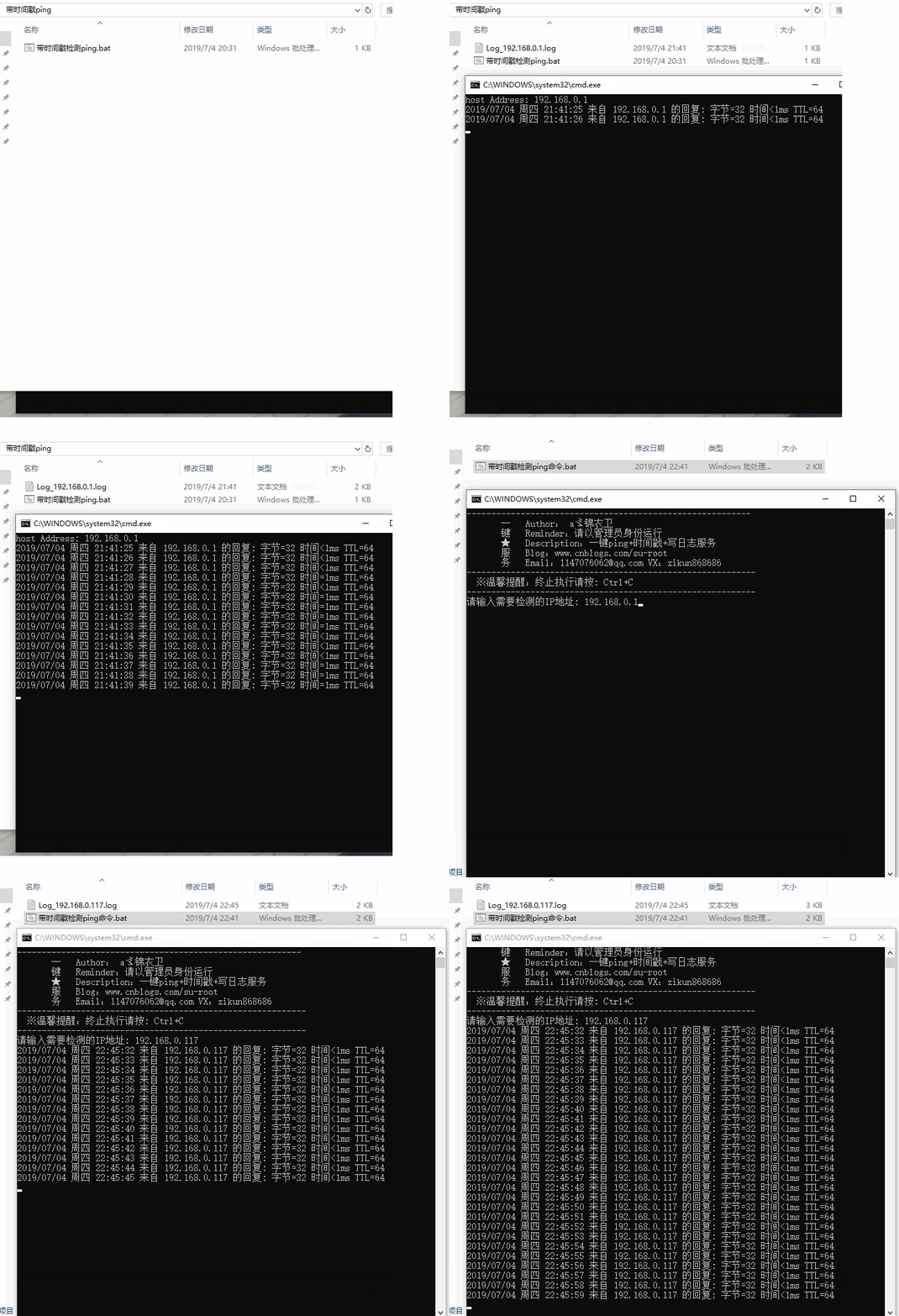
运行.bat文件效果如下:
注: .bat文件放到哪里执行,就会在本地生成相应的.log日志文件。
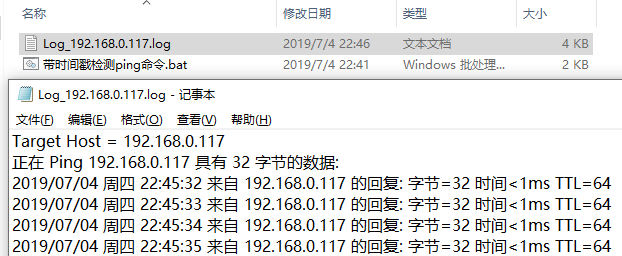
我们打开日志文件看看:
如果我们需要检测某IP地址的指定端口可将上面代码稍加改动即可:
1
2
3
4
5
6
7
8
9
10
11
12
13
14
15
16
17
18
19
20
21
22
@echo off@echo .----------------------------------------------------------@echo . 一 Author: aゞ锦衣卫@echo . 键 Reminder:请以管理员身份运行 @echo . ★ Description:一键端口检测服务 @echo . 服 Blog:www.cnblogs.com/su-root @echo . 务 Email:1147076062 @qq .com VX:zikun868686@echo .-----------------------------------------------------------@echo . ※温馨提醒:终止执行请按: Ctrl+C@echo .-----------------------------------------------------------@echo off"tokens=*" %%A in ('tcping -d -t -n 1 %host% %port%' ) do (echo %%A>>%logfile% && GOTO Ping)"tokens=* skip=2" %%A in ('tcping -d -t -n 1 %host% %port%' ) do (time :~0 ,2% :%time :~3 ,2% :%time :~6 ,2% %%A>>%logfile%time :~0 ,2% :%time :~3 ,2% :%time :~6 ,2% %%A1 >NUL
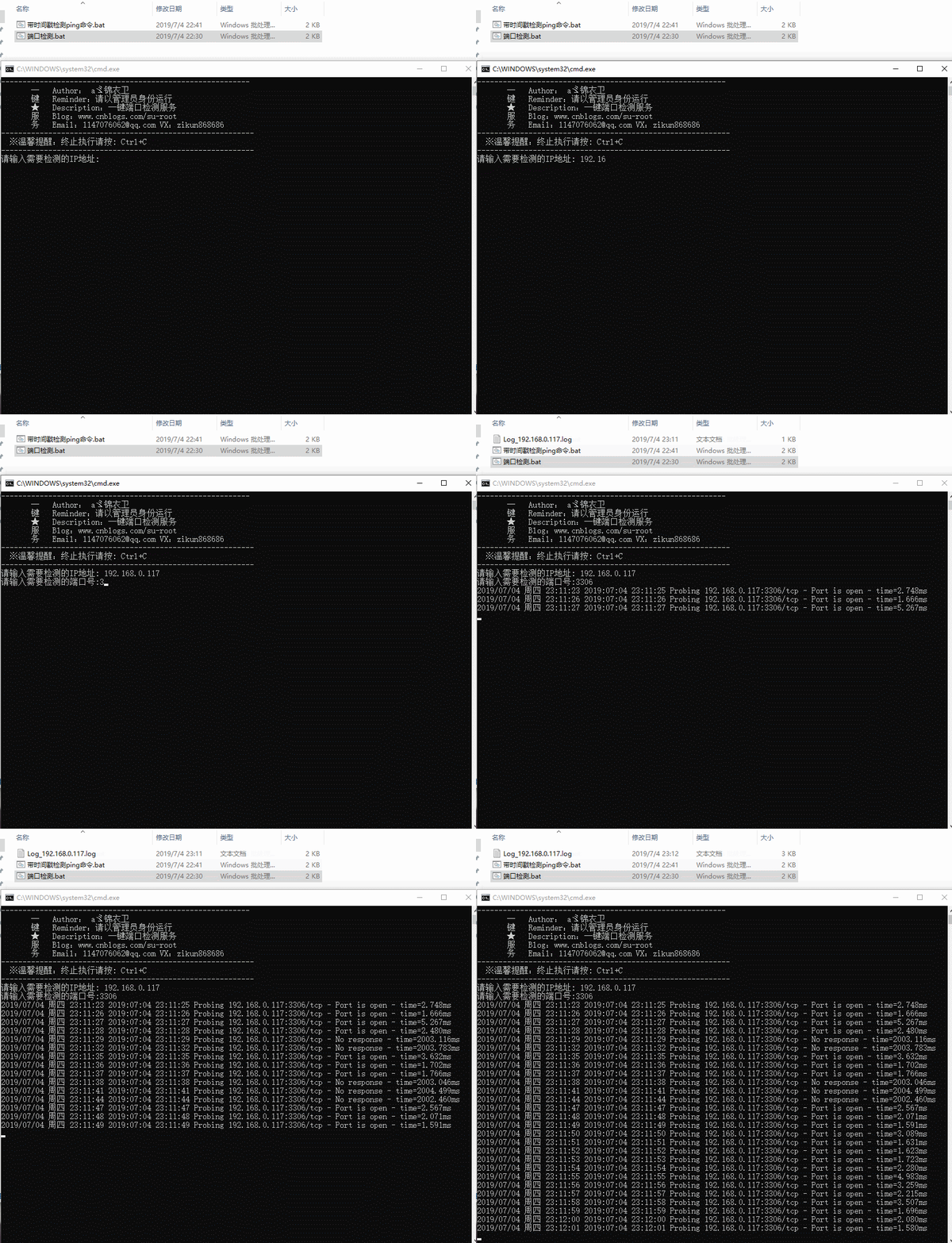
执行效果如下:
注: 去官网下载tcping工具(根据自身系统选择32位/64位)https://elifulkerson.com/projects/tcping.php tcping工具具体用法可参看:https://www.cnblogs.com/su-root/p/10924758.html
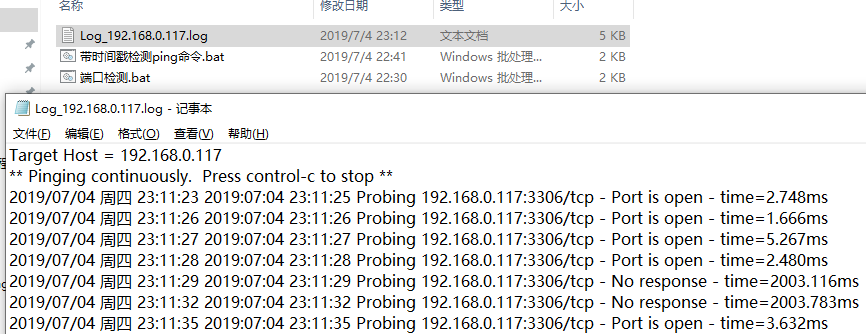
我们打开日志文件看看:
linux版:
1
2
3
4
5
6
7
8
[root@bqh-118 ~]# ping 192.168.0.117|awk '{print strftime("%c",systime()) "\t"$0}' PING 192.168.0.117 (192.168.0.117) 56(84) bytes of data.from 192.168.0.117: icmp_seq =1 ttl =64 time =0.223 msfrom 192.168.0.117: icmp_seq =2 ttl =64 time =0.385 msfrom 192.168.0.117: icmp_seq =3 ttl =64 time =0.420 msfrom 192.168.0.117: icmp_seq =4 ttl =64 time =0.291 msfrom 192.168.0.117: icmp_seq =5 ttl =64 time =1.21 msfrom 192.168.0.117: icmp_seq =6 ttl =64 time =1.45 ms
把输出信息写入到log日志中:
1
2
3
4
5
6
7
8
9
10
11
12
13
14
[root@bqh-118 ~]# ping 192.168.0.117 -c 6|awk '{print strftime("%c",systime()) "\t"$0}' >ping.log PING 192.168.0.117 (192.168.0.117) 56(84) bytes of data.from 192.168.0.117: icmp_seq =1 ttl =64 time =0.231 msfrom 192.168.0.117: icmp_seq =2 ttl =64 time =0.331 msfrom 192.168.0.117: icmp_seq =3 ttl =64 time =0.185 msfrom 192.168.0.117: icmp_seq =4 ttl =64 time =0.347 msfrom 192.168.0.117: icmp_seq =5 ttl =64 time =0.259 msfrom 192.168.0.117: icmp_seq =6 ttl =64 time =0.377 ms ping statistics ---
我们也可把任务放到后台运行
1 2 3 [root@bqh - 118 ~ ]# ping 192.168 .0.117 - c 6 | awk '{print strftime("%c" ,systime()) "\t " $0 }' > ping.log & 1 ] 1560 @bqh - 118 ~ ]#
当然也有其他方法检测,以上方法不是唯一的
ping 百度 1 2 3 4 5 6 7 8 9 10 11 12 13 14 15 echo offecho .------------------ping 指定 IP baidu.com-----------------------------echo offset host=baidu.comset logfile=Log_%host% .logecho Target Host = %host% >%logfile% for /f "tokens=*" %%A in ('ping %host% -n 1 ') do (echo %%A >>%logfile% && GOTO Ping )Ping for /f "tokens=* skip=2 " %%A in ('ping %host% -n 1 ') do (echo %date% %time:~0,2% :%time:~3,2% :%time:~6,2% %%A >>%logfile% echo %date% %time:~0,2% :%time:~3,2% :%time:~6,2% %%A 1 >NUL GOTO Ping )
ping 局域网 1 2 3 4 5 6 7 8 9 10 11 12 @Echo off1 ,1 ,255 ) do (%SystemRoot%\System32\PING.EXE -n 1 192.168 .1 .%%I )@Find "Request timed out." & echo 192.168 .0 .%%I Timed Out >>IPList.txt & echo off@Echo on